



FILE TRANSFER TO VCENTER 7 or 8 VCSA WITH WINSCP (Or How to address the “Host is not communicating for more than 15 seconds” error)
If you're a vSphere administrator, you know that transferring files to the vCenter Server Appliance (VCSA) is a frequent necessity, whether it's uploading patches, certificates, or gathering logs. The default shell in VCSA 7 and 8 is the secure Appliance Shell (seen below which requires you to type in “shell” to reach the /bin/bash cli),
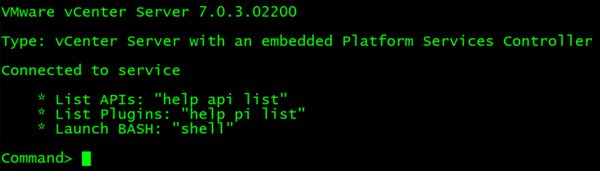
And it doesn't play nicely with standard SCP/SFTP clients like WinSCP right out of the box, often resulting in frustrating errors like:
“Host is not communicating for more than 15 seconds. Still Waiting…”
Or
"Received too large (… B) SFTP packet. Max supported packet size is 1024000 B. Cannot initialize SFTP protocol."
I have to tell you, I really hate it when I’ve got about 1,000 things to do and little things like this stop me in my tracks. I’m connecting to my vCenter with WinSCP and it looks like authentication is good and it’s about to connect…
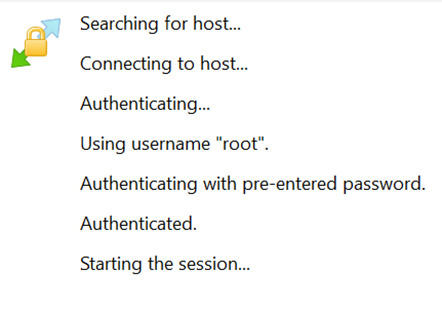
Then BAM! I get this silly error trying to ruin my day. BUT IT AUTHENTICATED! I scream inside my overwhelmed, coffee-primed mind.
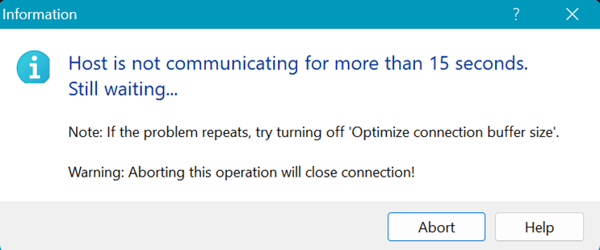
Oh that’s right! vCenter is a little different than the ESXi hosts. Fortunately, there are a couple of straightforward ways to fix this. I hope this blog post will quickly walk you through both a plan A—configuring WinSCP's advanced settings & a plan B—temporarily changing the VCSA's default shell so you can quickly transfer your file and get on with the rest of your work.
METHOD 1: THE RECOMMENDED WINSCP CONFIGURATION (NO VCSA SHELL CHANGE REQUIRED)
This approach is preferred because it avoids making a persistent change to the VCSA's default shell, which is a key security and stability feature of the appliance.
- ENABLE SSH LOGIN ON VCSA
Before you can connect with WinSCP (which uses the secure SSH protocol), you must enable it on your vCenter Appliance.
- Log in to the vCenter Server Appliance Management Interface (VAMI) by navigating to https://<vcenter_fqdn_or_ip>:5480.
- Navigate to Access.
- Click Edit and ensure Enable SSH login is checked.
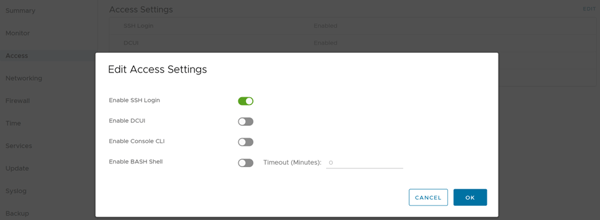
- Click OK.
- CONFIGURE THE WINSCP SESSION
- Launch WinSCP and create a New Site.
- File protocol: Select SFTP (NOT SCP for this solution).
- Host name: Enter the FQDN or IP address of your VCSA.
- Port number: Enter 22 (the default SSH port).
- User name: Enter root.
- Password: Enter the root account password.
- Click the Advanced... button.
- ADJUST THE SFTP SERVER SETTING
This is the critical step to bypass the Appliance Shell limitation.
- In the Advanced Site Settings window, navigate to Environment > SFTP.
- In the SFTP server field, replace the default value with the following: shell /usr/libexec/sftp-server
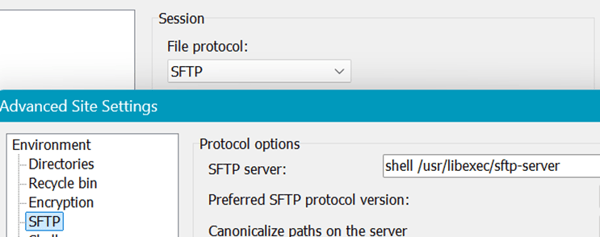
Note: For some older VCSA versions (pre-6.5), the path might be /usr/lib64/ssh/sftp-server. Use the first one for vCenter 7 and 8.
- Click OK to save the advanced settings.
- Back on the Login window, click Save (optional) and then Login.
You should now connect successfully and can begin your file transfers!
METHOD 2: TEMPORARILY CHANGING THE VCSA SHELL
If Method 1 doesn't work for your specific environment (which is rare for VCSA 7/8), or you don’t use WinSCP, you can temporarily change the root user's default shell to Bash. ***Just remember to switch it back immediately after your file transfer is complete.***
- CONNECT VIA SSH
- Ensure SSH Login is enabled as described in Method 1.
- Use an SSH client (like PuTTY) to connect to your VCSA's FQDN or IP address as the root user.
- ENABLE AND SWITCH TO BASH SHELL
- Once logged into the Appliance Shell, run the following commands: shell.set --enable True shell This enables the Bash shell.
- CHANGE DEFAULT SHELL FOR ROOT
- In the Bash shell, run this command to permanently (until you revert it) change the root user's default shell to Bash: chsh -s /bin/bash root
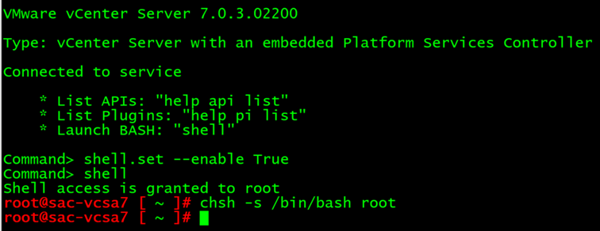
- CONNECT WITH WINSCP
- You can now connect to the VCSA with WinSCP using the default settings (File protocol: SFTP). No need for the WinSCP advanced settings from Method 1.
- REVERT THE CHANGE
For security and stability, you must change the shell back to the Appliance Shell. After you are finished with your file transfers, go back to your SSH session and run:
chsh -s /bin/appliancesh root
You can verify the change by logging out and logging back in.
I hope this will be a quick and helpful guide for some of you out there. If this was helpful and you have a second to spare before your next task, please let me know. Thanks, and happy administrating!
LookingPoint offers multiple IT services if you’re interested. Want more information, give us a call! Please reach out to us at sales@lookingpoint.com and we’ll be happy to help!

Ryan Alibrando, Managed Services Team Lead